Curated Post
The Curated Post block is a powerful way to highlight specific blog posts anywhere on your site. Instead of relying only on categories or tags, you can hand-pick posts by searching for their titles. This makes it easy to showcase your best content in a flexible layout, with the option to display posts as a grid or turn them into a slider.
How to Add the Curated Post Block
- In the WordPress editor, click the “+” Add Block button.
- Search for Curated Post and insert it into your page or post.
- In the block sidebar settings, use the search field to select posts by title. A dropdown will appear with suggestions as you type.
- Add as many posts as you like.
Selecting Posts
- You can search posts by typing part of the title.
- Selected posts appear in the block based on the Query Loop.
- Order and display depend on the query settings (such as grid vs list).
Starter Templates
When you insert the Curated Post block, you can choose from three starter templates. Each template controls the layout and appearance of your curated posts, but you can fully customize them afterward.
Minimal
- Clean grid layout with landscape (4:3) featured images.
- Title and date shown on the right.
- Minimal and simple.

List
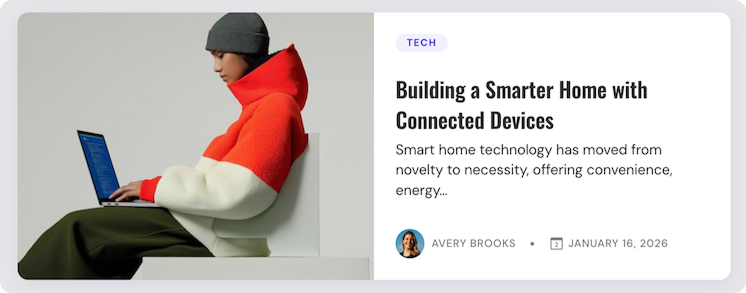
- Side-by-side layout with the featured image on the left and the content on the right.
- Featured image uses a wide 4:3 ratio.
- The content section displays the category, post title, excerpt, and author/date.
- A balanced magazine-style design that combines strong visuals with descriptive text, making it ideal for featured stories or editorial sections.
Grid
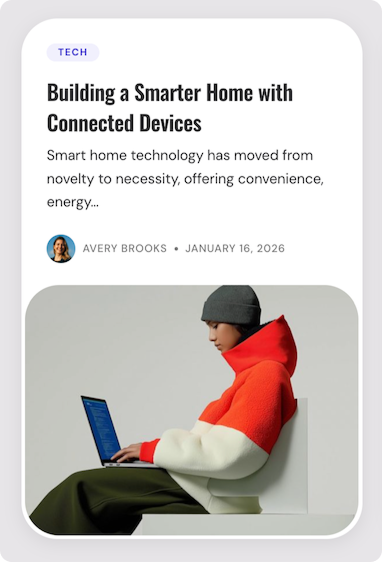
- Rounded card design with generous spacing.
- 4:3 featured image.
- Includes category, title, excerpt, and author/date in a modern magazine style.
- Great for featured content grids.
Slider Option
You can transform any starter template into a slider powered by Swiper.
Available Controls
- Navigation arrows
- Pagination dots
- Loop (on/off)
- Autoplay (on/off, with delay option)
- Pause on hover
- Adjustable speed (default: 1000ms)
Responsive Settings
By default, one post per slide is shown across desktop, tablet, and mobile. You can adjust slides per view and spacing per device in the block settings.
Enabling the slider replaces the grid layout with a slide-based display.
Customization with InnerBlocks
The Curated Post block uses InnerBlocks so you can customize layouts beyond the starter templates.
- Swap or rearrange blocks (e.g., add Post Excerpt, remove Author).
- Change block settings such as typography, spacing, or colors.
- Navigation is shared across all templates, so changes to your menu automatically apply everywhere.
When customizing InnerBlocks, it’s recommended to make a backup before heavy changes. Some modifications may break the original layout structure.
Best Practices & Use Cases
- Use Minimail for simple blog grids.
- Use List for feature sections or magazine-style layouts.
- Use Grid when you want strong visuals with short text previews.
- Enable the Slider option when showcasing featured posts on a homepage or landing page.