Taxonomy Highlight
The Taxonomy Highlight block lets you showcase a specific category or tag anywhere on your site. It’s perfect for drawing attention to popular categories or highlighting “top destinations” in a travel blog. You can select a term in the block settings, and the block will automatically display its name and post count.

How to Add Taxonomy Highlight Block
- In the WordPress editor, click the “+” Add Block button.
- Search for Taxonomy Highlight and insert it into your page.
- By default, the block shows a placeholder.
- Use the block settings panel (right sidebar) to configure the block:
- Taxonomy Type
Choose between Category or Tag. - Select Term
Pick from the list of available categories or tags (depending on your selection above).
- Taxonomy Type
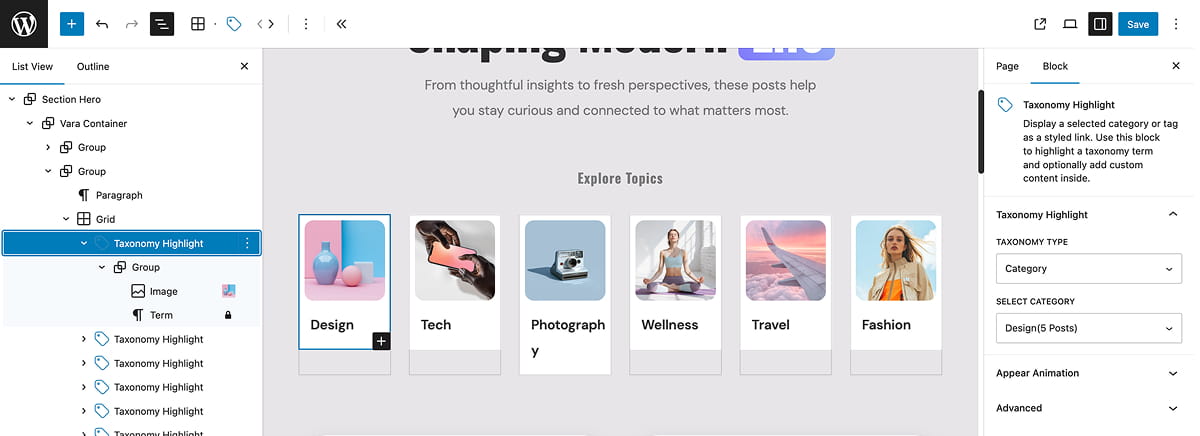
Customizing with InnerBlocks
The Taxonomy Highlight block includes InnerBlocks, so you can add any block inside it for a fully custom design.
Recommended usage:
- Heading Block → to display the term name.
- Paragraph Block → to display the post count.
- Image Block → to represent the category visually (e.g., a destination photo).
- Button Block → to link directly to the category archive.
You can also style the InnerBlocks independently with your own colors, typography, and spacing — without breaking functionality.
info
The term name and post count are inserted automatically, but you can rearrange or style them as needed.
Use Cases
- Top Categories Section: Showcase your most important categories on the homepage.
- Featured Tags: Highlight specific tags (e.g., "Photography" or “Tech”) in a grid layout.
- Explore by Topics: For travel blogs, use multiple Taxonomy Highlight blocks in a grid to display top destinations with images.
Best Practices
- Use multiple blocks together in a grid to highlight a set of categories or tags.
- Pair each block with a featured image for visual appeal.
- Keep styling consistent (same font size, button style, or image aspect ratio) for a professional look.
- Use this block in homepage sections or sidebars to guide visitors to key parts of your site.